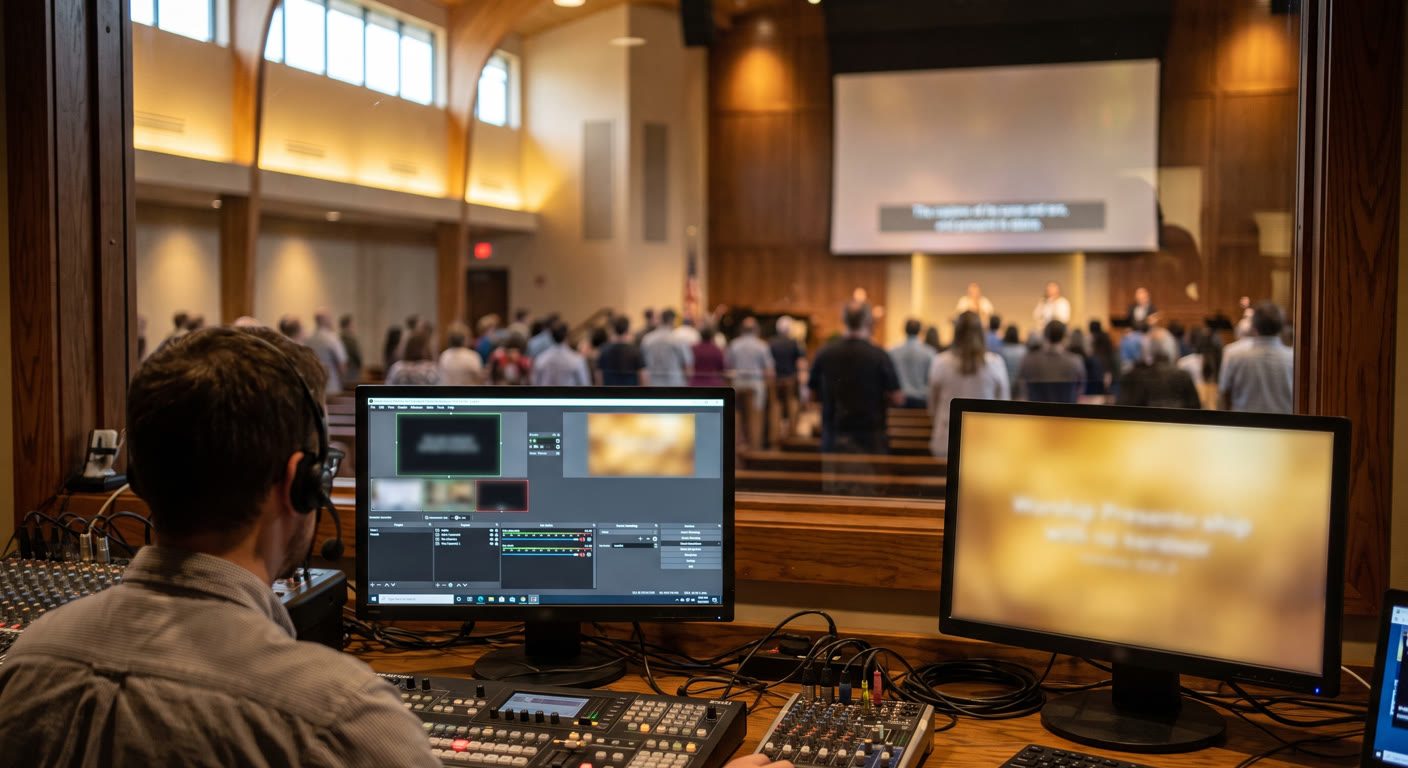
Displaying Translations in Proclaim with OBS
Glossa provides a lightweight embed view that shows the live translated text on its own page. Proclaim doesn't support layering a web page on top of your slides the way ProPresenter does, so there are two ways to show translations: display the embed page as a dedicated slide in Proclaim, or use OBS to merge your Proclaim slides with a Glossa lower third — so captions stay on screen while you switch slides.
Watch the Full Walkthrough
Step 1: Get Your Embed URL
- Sign in to Glossa and open your dashboard.
- Select the service where you want to show captions and translations.
- Open the streaming page, then go to Advanced settings → iFrame integration.
- Copy the embedding link. It looks like:
Add parameters to choose the language and how many sentences stay on screen, for example:
Step 2 (Option A): Show the Embed Page as a Slide in Proclaim
- In your Proclaim presentation, click Add Item → Web Page.
- Paste the embed URL you copied from Glossa.
- Adjust the background color, text color, and font size with URL parameters so it matches your screens (see How to Embed Glossa Live Translations for the full list).
Limitation: the web page item takes over the whole screen. As soon as you switch to another slide, the translation disappears. This works well if you keep the caption slide up for the entire message — but if you want captions under your slides, use Option B.
Step 3 (Option B): Show a Lower Third with OBS
OBS merges two sources — your Proclaim slides and the Glossa embed page — and outputs the combined picture to your projector, YouTube, or any other destination.
In Proclaim
- Go to your display settings and add a custom output: NDI Display. Give it a title.
- Start presenting — the yellow NDI indicator confirms your slides are being sent over NDI.
In OBS
- Make sure you're on the latest version of OBS, and install the NDI plugin (DistroAV): github.com/DistroAV/DistroAV/releases
- Add a source → NDI Source, and select the Proclaim screen you created. Your slides now appear in OBS and follow along automatically when you switch slides.
- Add another source → Browser, and paste your Glossa embed URL with your language and sentence parameters, e.g.
?lang=es&sentences=2. - Size the browser source as a lower third — for a 1920×1080 canvas, width 1000 / height 300 works well. Position it at the bottom of the frame.
- Start your output — to a projector, YouTube, or your in-room display. Your congregation sees the slides and the live translation at the same time.
Styling the Text
All embed styling options work in the OBS browser source too: lang, bg (background color), color (text color), font-size, align, sentences, and font-family. For a classic lower third, try white text on a black background:
https://glossa.live/embed/{SERVICE_ID}?lang=es&bg=000000&color=ffffff&font-size=36px&sentences=2Related Articles
- Displaying translations in ProPresenter — Layer live captions directly over your ProPresenter slides.
- Streaming with OBS and a virtual audio cable — Send your service audio into Glossa from OBS.
- How to Embed Glossa Live Translations — The full list of embed URL parameters and customization options.